

AI Learning Hub › Learn AI › Self-Paced Courses › Gemini Notebook: Working with Sources You Choose › Build the Source Set
Module 2 · Beginner
Build the Source Set
Adding web pages and uploading files, what each import keeps and drops, why source titles and enabled state matter, and why a bounded set is usually more useful than everything you have.
A notebook’s source set is a research decision, and it is worth making deliberately. The temptation with a tool that accepts dozens of documents at once is to give it everything and let it sort things out. That tends to produce answers you cannot check, because you no longer hold a clear picture of what the assistant was reading.
The alternative takes a few more minutes: decide what question the notebook is for, choose the smallest set of material that can answer it, and be able to say why each item is in there. A set you can describe is a set you can verify against.
Adding web pages
Choose Add sources, then Websites, and paste one or more URLs. The dialog states its own limits, and they are worth reading before you assume a page will arrive intact.
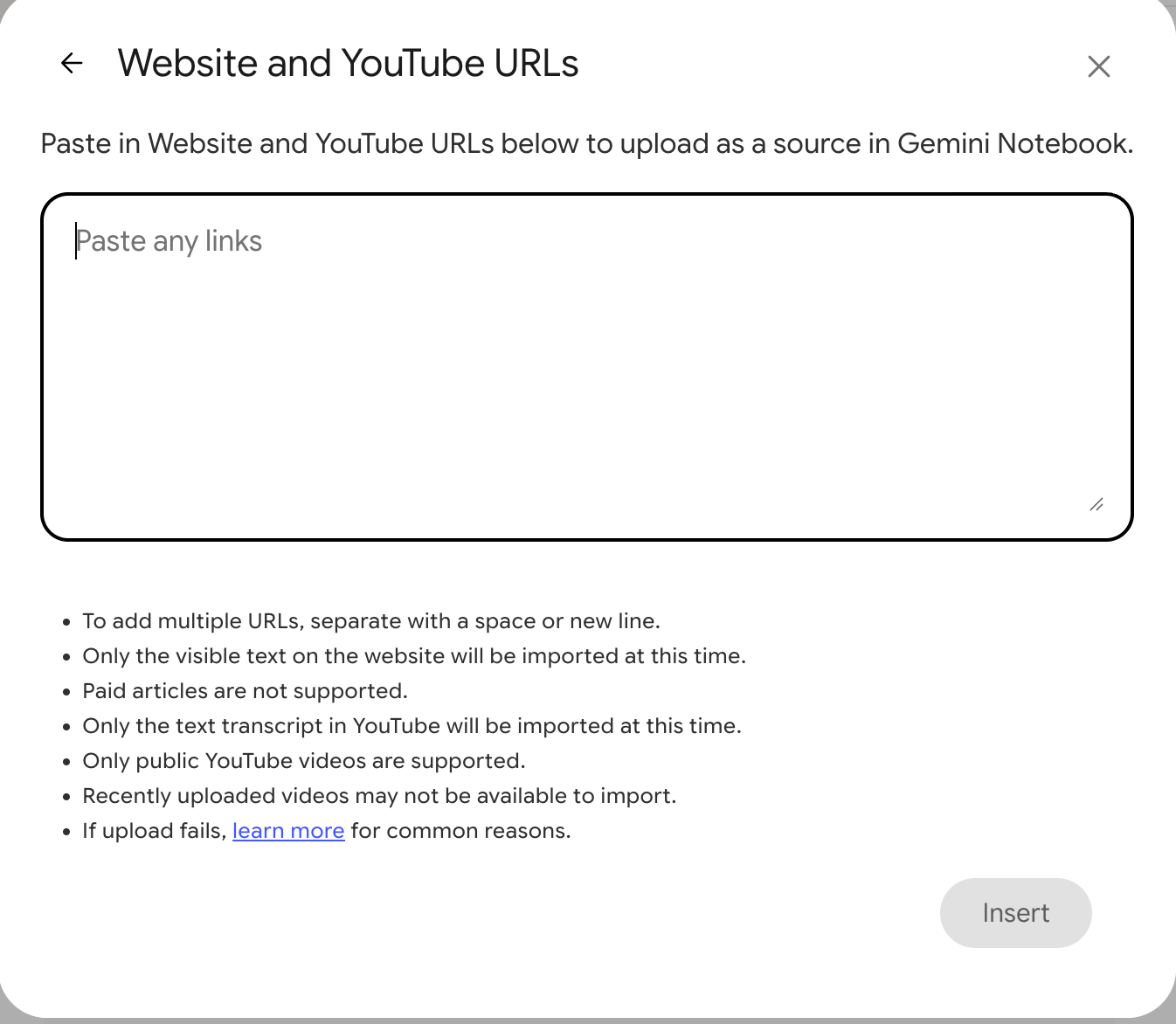
Two of those lines matter more than the others for research material. Only the visible text is imported, so tables rendered as images, embedded documents, and anything behind a tab or an accordion may simply not be there. And paywalled articles are not supported, which rules out a good deal of subscription material. The practical habit is to read the dialog as it stands today rather than trusting a list like this one, because these constraints are revised.
After importing, open the source in the panel and skim what actually arrived. It takes fifteen seconds and it is the only way to know whether the page you meant to add is the page the notebook now holds.
Uploading a file
The same dialog accepts files, either through Upload files or by dragging them onto the drop area. In testing, a small PDF was accepted, processed without a visible wait, and became usable immediately.
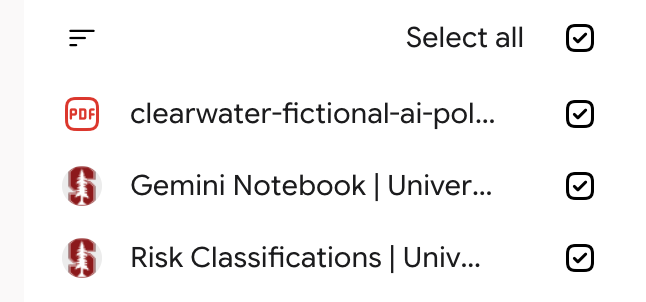
That naming behavior is a small thing with a real consequence. A set containing draft2final.pdf and scan_0043.pdf gives you citations you cannot read at a glance. Name files the way you would want to see them in a footnote.
One file type was tested here, so treat the rest as unverified. The dialog lists what it accepts, and the list is long — documents, spreadsheets, slides, images, audio, ebooks — but how faithfully each one converts is a question you answer by opening the imported source and looking.
Enabled, disabled, and how many
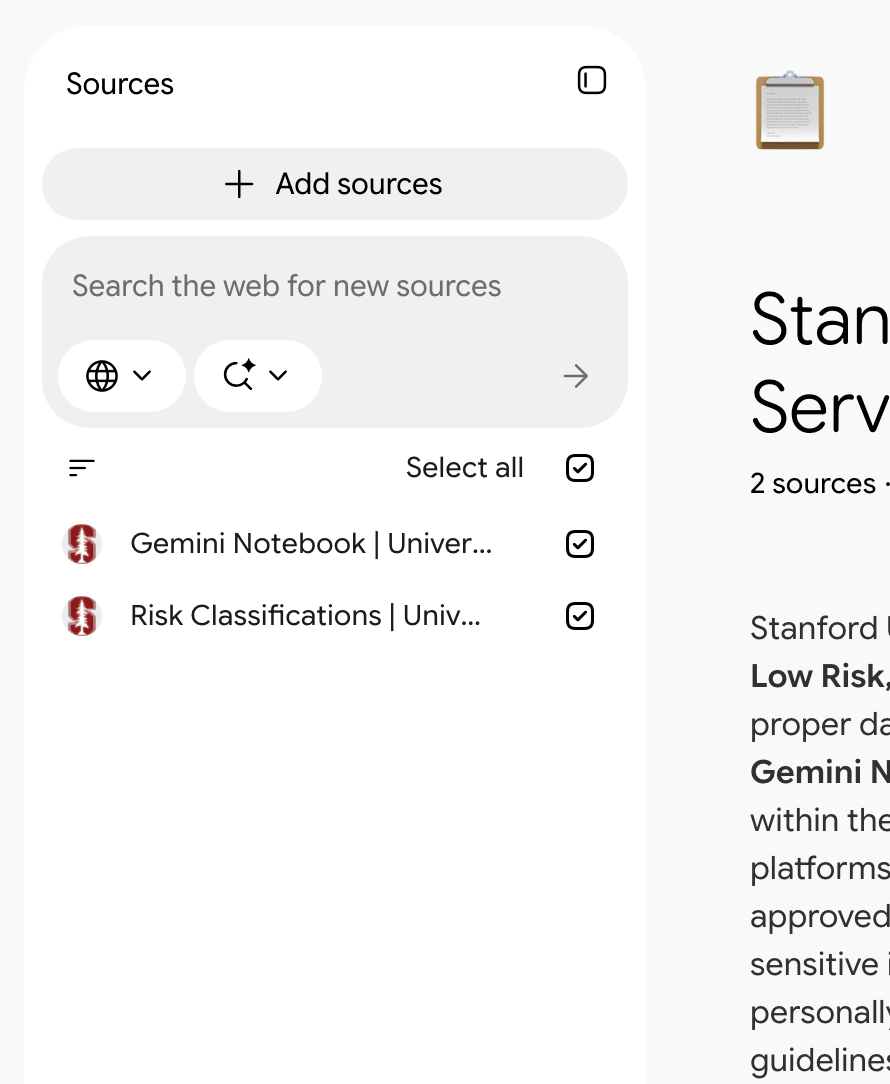
Each source carries a checkbox. Unticking one keeps it in the notebook and takes it out of the material the assistant answers from, which is a quick way to ask what a narrower set would say. The checkboxes are also the fastest honest answer to “what is this notebook working from right now.”
On the Stanford account tested in October 2026, the Add sources dialog displayed a 100-source limit. Google’s help pages gave different figures for other plans and surfaces at the same date. Nothing in this course depends on the number; check the dialog in your own notebook if it matters to your work.
Sharing a notebook
The share dialog on the tested account invites people and groups by name, shows the owner’s role, and has Notify people ticked by default. Its link menu offered a single item, Copy link to chat view. No “anyone with the link” control was observed on that account; why it was absent is not something the interface explains, and this course does not guess.
The point to carry: sharing a notebook shares the sources in it. Before you add someone, look at the list and ask whether every item on it is yours to pass along.
Exercise: design a five-item set
Take a question you actually want answered — a seminar topic, a policy comparison, something from work. Write it in one sentence. Then list up to five sources you would put in a notebook to answer it, and for each one write a short line saying what it contributes that the others do not.
Then go back through your list and mark anything that will probably lose content on import: a page whose substance sits in a chart, an article behind a subscription, a PDF that is a scan rather than text. Those are the items to find another route to, or to leave out knowingly.
What a good list looks like when you are done
Every item has a distinct job, you could defend each one to someone who asked why it is there, and the ones that will import badly are either replaced or consciously accepted. If two sources are doing the same job, drop one; a smaller set makes the next three modules easier, not harder.