

AI Learning Hub › Learn AI › Self-Paced Courses › LexText at SLS › Meet LexText at SLS
Module 1 · Beginner
Meet LexText at SLS
Why a matter rather than a conversation is the organizing unit, what sits inside one, and how prompted work differs from a structured workflow.
By the end
- Say what LexText is in one sentence
- Explain why a matter, not a conversation, is the organizing unit
- Tell prompted work from structured-workflow work
- Name the tools inside a matter and what each is for
- Know why the live product and the training material currently differ
- Know where to find current access instructions
What is LexText, and why is it organized around a matter?
The short version is worth carrying:
LexText is a legal AI platform built specifically around litigation work, and it organizes that work inside a matter.
A matter is one dispute. Inside a matter, LexText holds:
- persistent case background — core documents the system keeps available across everything you do in that matter;
- tasks — individual pieces of work you ask for;
- drafts — what those tasks produce;
- document search across the material you have given it;
- structured drafting workflows for particular litigation documents; and
- verification work on citations and quotations.
Notice what that list is not. It is not a claim that LexText handles every kind of litigation task, or every stage of a case. It is a description of what the current Stanford instance puts inside the container.
A matter is not a conversation
If your mental model of AI comes from a chat window, this is the adjustment to make first. The two architectures are genuinely different, and neither one is simply better.
A general AI conversation
Begins with a prompt.
Context is whatever you have pasted or attached in this thread. It is temporary, it belongs to this exchange, and when you start a new chat you start over. The unit of organization is the conversation.
LexText
Begins with a matter.
Case Background persists. Tasks and drafts live inside the matter and inherit its context. You return to the same case file rather than reassembling it. The unit of organization is the dispute.
The matter is the container, and tasks are work performed inside it.
This is an architectural distinction, not a quality ranking. A persistent case file saves you from re-explaining the dispute every time, which is genuinely useful when the work is one long matter. It also means the material you put in stays there and informs work you have not written yet — which is exactly why Module 3 spends as much time on what belongs in a matter as on how to make one.
Two ways work starts
Inside a matter, the second big distinction appears. Some LexText work begins with a prompt. Other work begins with a structured workflow.
Case Assistant — prompt-oriented work
Its start state asks an open question. Observed on screen: the eyebrow CASE ASSISTANT, the heading What Are You Working On?, and a composer inviting you to “Describe your task and attach relevant documents.” Beside the composer are a model choice of Fast or Deep, a control to + Add Task-Specific Docs, and a row of suggested task chips.
You supply the shape of the request. LexText supplies the answer.
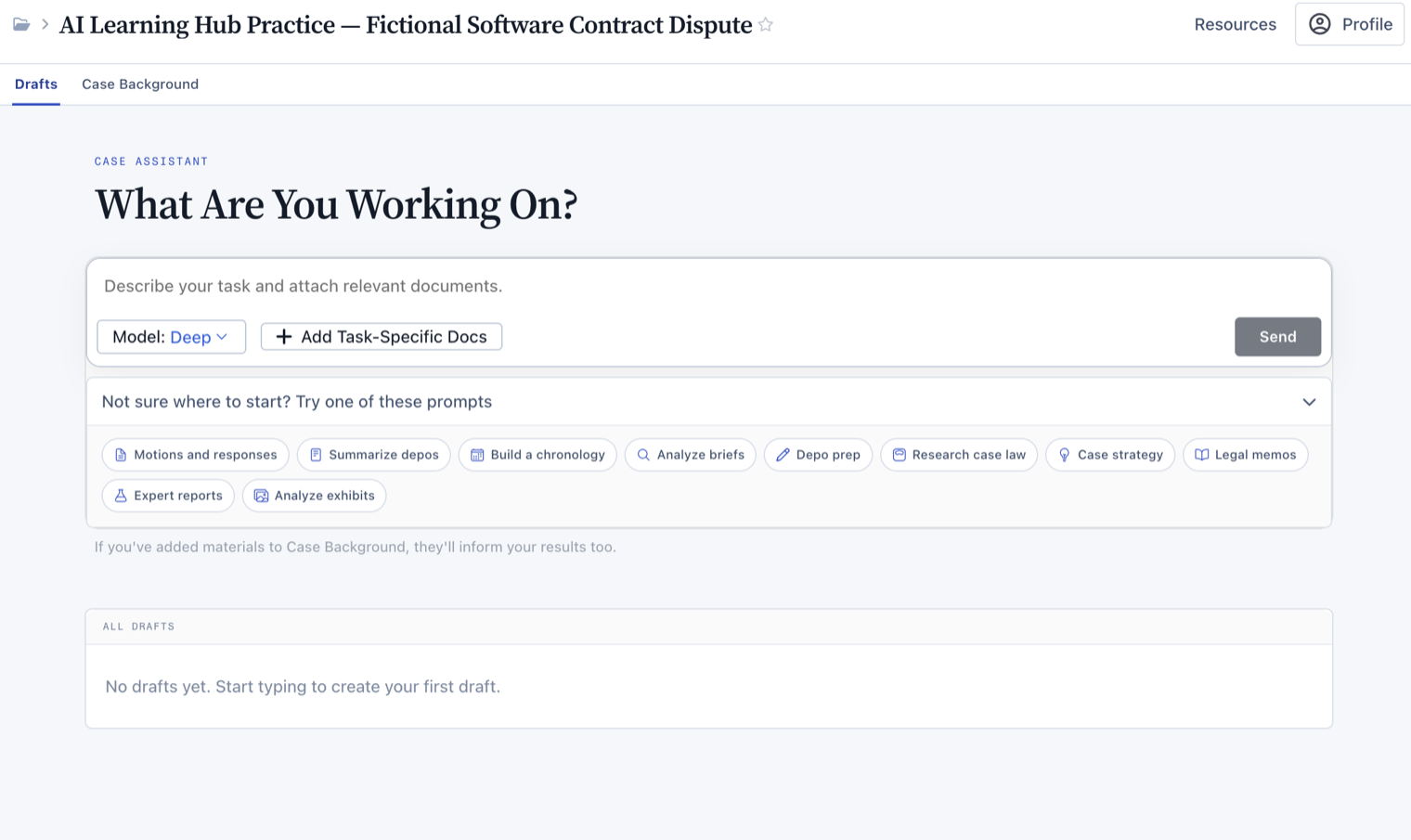
The ten chips under “Not sure where to start?” are a fair summary of what LexText expects the surface to be used for: Motions and responses, Summarize depos, Build a chronology, Analyze briefs, Depo prep, Research case law, Case strategy, Legal memos, Expert reports, and Analyze exhibits. They are suggestions, not a menu — the composer takes anything you type.
Guided Drafter — structured workflow work
Its start state does the opposite. Observed on screen: the eyebrow STRUCTURED WORKFLOWS and the line “Choose a workflow and LexText walks you through the inputs, in order.” The LexText FAQ puts it more bluntly still: “No prompting required.”
LexText supplies the shape. You supply the inputs.
LexText gives you both modes: ask when the task is open-ended; follow a workflow when the work product has a known structure.
A memo about whether a claim is worth bringing has no fixed form, so you describe it. An answer to a complaint has a very fixed form — admit, deny, or lack knowledge, paragraph by paragraph, then affirmative defenses — so a workflow can ask you for the parts. Modules 4 and 5 teach the two surfaces in depth. For now, just learn to tell them apart.
What is inside a matter
Six things, and short descriptions are enough at this stage.
Case Assistant
Open-ended, task-based work.
You describe what you need. Taught in Module 4.
Guided Drafter
Structured litigation drafting and analysis.
You pick a workflow and answer its questions. Taught in Module 5.
Doc Search
Search across a large document set you upload to it.
Finding the passage rather than generating text. It keeps its own documents, separate from Case Background. Taught in Module 6.
Hallucination Guard (Beta)
Post-hoc verification.
Checks citations, quotations, and cited propositions in a finished document against the source authorities. Taught in Module 7.
Case Background
Persistent matter context.
Core case documents, uploaded once and available to everything else. Set up in Module 3.
Create New Task
Starts a new piece of work in this matter.
The task picks up the matter’s Case Background automatically.
Around those, the interface is deliberately plain. The sidebar lists MATTERS with a + to add one, then your matters, then — for the matter you have selected — the tools above, + Create New Task, your drafts, and Log out. The top bar carries a breadcrumb, Resources, and Profile. Inside a matter there are two tabs: Drafts and Case Background. That is the whole navigation.
LexText is a litigation product
This is worth stating plainly, because it is the clearest limit on what the live product currently does. LexText’s structured workflows are not practice-agnostic. They are litigation documents, grouped into three categories.
Pleadings
- Complaint
- Answer
Discovery requests and responses
- Requests for Production
- Interrogatories
- Requests for Admission
- Objections to Requests for Production
- Objections to Interrogatories
Analysis
- Complaint Analyzer
Two in Pleadings, five in Discovery, one in Analysis. The Guided Drafter reports 8 workflows, which is exactly that total.
Observed in the SLS LexText account
Verified 24 September 2026. Every interface label in this module — the sidebar items, the tool names, the two start states and their wording, the workflow categories, and the workflow count — was read directly from the Stanford instance at sls.lextext.ai on that date. The product is co-branded LexText AI | Stanford Law School and shows no version number.
Three kinds of statement appear in this course and they are not interchangeable: live SLS product behavior means someone looked; LexText Resource Center material means LexText published it as training; public LexText documentation means LexText published it to the world. Where they disagree, the course says so.
Training and the live product may differ
They currently do, in a way worth seeing early because it teaches a habit.
Motion to Dismiss. The Stanford LexText Resource Center FAQ lists Motion to Dismiss (beta) among the Guided Drafter pleadings workflows. The live Stanford Guided Drafter currently shows only Complaint and Answer under Pleadings, and its own counter reads eight workflows — which is the exact total of the eight visible ones. So the feature is not merely hidden somewhere this course failed to look.
That does not make the Resource Center wrong. Training material and feature rollouts move at different speeds, and a beta can be documented before, or after, it reaches a particular instance. This course follows the live SLS interface first, and notes the training material where the difference is useful to know.
Product training and live features can move at different speeds. Check the interface you actually have.
Getting access at SLS
LexText appears on the AI Learning Hub’s AI Resources page under Specialty legal AI — Provided by the Law Library, marked Available now. That page is the source of truth for access, and it changes as arrangements change, which is why this course points at it rather than copying its instructions here.
Get access to LexText
- Visit the AI Learning Hub Resources page.
- Find LexText under Specialty legal AI — Provided by the Law Library.
- Follow the current request-access instructions given there.
- Consider AI Essentials Training first. The Resources page states that the Law Library highly encourages you to complete it before requesting access. Encouraged, not required — but it is the fastest way to pick up the professional habits this course assumes.
- Email the library if anything is unclear or the instructions do not seem to fit your situation.
LexText’s own training material
The Stanford LexText instance carries a Resource Center, subtitled Getting the Most Out of LexText, with video walkthroughs and a FAQ. It is worth knowing what it is, and what it is not.
The Resource Center is LexText-created training hosted on the Stanford LexText instance. It is not Stanford Law School policy guidance. It tells you how the product works. It does not tell you what you are permitted to do with it in a course, a clinic, or an exam. Those come from Module 2’s sources, not from the vendor.
LexText Resource Center
Short LexText-created walkthroughs and FAQs for the current Stanford instance, organized into two tabs: Tutorials and FAQ & Tips. The videos run from about one to four and a half minutes each and track the product’s own categories — getting started, pleadings, discovery, the Complaint Analyzer, motions, and document analysis.
Later modules point at specific walkthroughs where they add something this course does not.
Who might use LexText at SLS?
Students
Learn how a matter-centered litigation AI system organizes facts, documents, analysis, drafting, and verification — and what each of those steps demands of the lawyer.
Course policy still governs what you may use for coursework. Module 2 covers this in full.
Faculty
Explore litigation-focused AI workflows relevant to teaching, scholarship, simulations, and understanding what contemporary practice now looks like.
Clinics
Understand tools that closely resemble real litigation workflows, because they are built for them.
Actual clinic use also depends on clinic policy, supervisor direction, confidentiality, and professional responsibility. Do not upload real client material in order to learn the product; this course never asks you to.
Exercise
Matter, task, or workflow?
Four situations. Decide where each one belongs before opening the answer. This is orientation rather than mechanics: you are practicing the vocabulary, not the clicks.
A. You are setting up the overall container for a fictional lawsuit.
Show the answer for A
A matter. This is the container itself, not work done inside one. Everything else in the list happens after it exists.
B. You want to ask an open-ended question about the case.
Show the answer for B
Case Assistant, as a task. The request has no predetermined output format, so you describe it yourself. This is the prompt-oriented door.
C. You want LexText to walk you through drafting an Answer using a defined sequence of inputs.
Show the answer for C
Guided Drafter. The phrase “defined sequence of inputs” is the giveaway: the output has a known structure, so the workflow asks you for the parts rather than waiting for a prompt.
D. You want to check citations and quotations in a finished document.
Show the answer for D
Hallucination Guard. Note the word finished — this is a review surface you point at an existing document, not a setting you switch on while something is being written. Module 7 returns to what that does and does not accomplish.