

AI Learning Hub › Learn AI › Self-Paced Courses › LexText at SLS › Set Up a Matter
Module 3 · Beginner
Set Up a Matter
Build the practice matter: what Case Background is for and what it is not, the current document limits, and what belongs in persistent context.
By the end
- Create a matter and know what it will hold
- Say what Case Background is for, and what it is not for
- State the current document limits and where they came from
- Read the upload control in front of you rather than a general rule
- Decide what belongs in persistent context and what does not
- Know the practice case the rest of this course uses
What belongs in a LexText matter, and what should I think about before uploading it?
A matter is the container LexText uses to keep litigation work together. Once you select one, the whole interface is scoped to it: the tools in the sidebar operate on that matter, new tasks inherit its context, and drafts are filed under it.
Inside a matter you will find Drafts and Case Background as tabs, and Case Assistant, Guided Drafter, Doc Search, and Hallucination Guard as tools, along with + Create New Task and the tasks you have run.
A matter is context that persists, which makes setup useful and makes data judgment important.
Both halves of that sentence are doing work. Persistence is the feature: you describe the dispute once. Persistence is also the risk: material you add is available to everything you do in the matter afterward, including work you have not thought of yet.
Case Background
LexText describes Case Background as a persistent knowledge layer for your matter. You upload the core case documents once and subsequent tasks draw on them without you re-attaching anything. The tab describes itself the same way on screen: “Optionally upload matter-relevant background materials — procedural history, key documents, correspondence, and more — to inform future Case Assistant tasks in this matter.”
Note the two limiting words in that sentence. Optionally: a matter works without it. Future: it informs tasks you run after the upload, not ones already finished.
The documents LexText names as examples are the spine of a litigation file:
- complaints;
- motions;
- depositions;
- contracts; and
- correspondence.
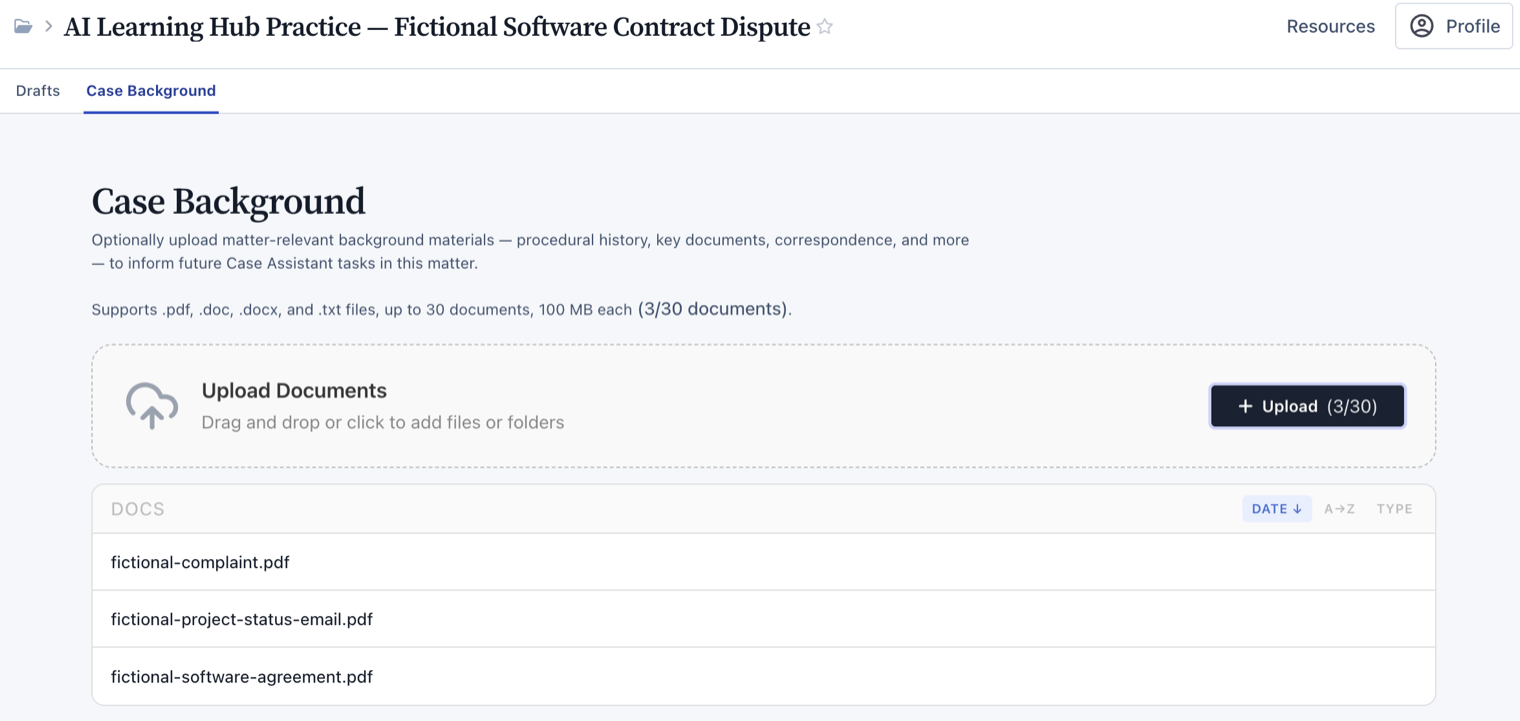
Two things are worth noticing in that list, because they are absences rather than features. LexText shows the filename and nothing else — no document type, no page count, no file size, and no processing or indexing indicator, even though the table offers a TYPE sort. And the counter in the upload button, 3/30, is the only confirmation you get that the matter now knows about these documents.
How much fits, and where
Limits observed on the live upload controls
- Case Background: up to 30 documents per matter, 100 MB each.
- Doc Search: 50 MB per file, 1 GB total per matter.
- Task-specific documents: up to 10 per task prompt. (Resource Center guidance; not shown on a live control.)
Observed in the SLS LexText account · 24 September 2026. Limits of this kind change. Read the control in front of you rather than this list.
Those numbers describe different places, and the distinction is the useful part. Case Background is the matter’s library. Task-specific documents ride along with one request and do not join the matter’s permanent context. That gives you a real choice every time you upload something, which the exercise at the end of this module practices.
Doc Search keeps its own documents
This one surprises people, so it is worth stating before you rely on the opposite. Doc Search does not search Case Background. It is a separate store with its own uploads, and its own empty state invites you to add documents even when the matter’s Case Background is full. Its own screen says so:
On the Doc Search screen
“Documents uploaded here are separate from your task history and won’t affect your other results.” Observed in the SLS LexText account, 24 September 2026.
So a matter can hold documents in more than one place at once, and putting a file in Case Background does not put it in Doc Search. Module 6 works through when you want which. For now: uploading to one is not uploading to the other, in either direction.
File support differs by surface
There is no single LexText upload rule, and assuming there is one will eventually cost you an afternoon. Four different answers are currently visible, and they do not agree.
Case Background · live control
.pdf, .doc, .docx, .txt
Up to 30 documents, 100 MB each.
Doc Search · live control
txt, pdf, doc, docx, msg, eml, png, jpeg, jpg
Maximum 50 MB per file, 1 GB total per matter. The widest of the four — the only one accepting email files and images.
Hallucination Guard · live control
PDF, DOCX, DOC, or TXT
One document at a time, chosen for review.
The FAQ
PDF and DOCX
Resource Center guidance, observed 24 September 2026. The narrowest of the four.
This course does not try to reconcile those into one master list, because they are not describing the same thing. Three are what specific upload widgets said on a specific day; the fourth is general written guidance. A learner who remembers “LexText takes PDFs and Word files” will be wrong about Doc Search in one direction and wrong about Case Background in the other.
File support can differ by LexText surface. Read the upload control you are actually using.
The practice matter this course uses
Everything from here on runs on one fictional case, built for this course so that no exercise ever requires real material.
AI Learning Hub Practice — Fictional Software Contract Dispute. Every LexText object this course creates carries the AI Learning Hub Practice — prefix, so that it is never mistaken for anyone’s real work.
The design is a hybrid, and the reason is worth understanding because it is the same trade-off you will face whenever you build a teaching example.
Fictional
The parties, the facts, the contract, and the correspondence.
Safe to upload, safe to screenshot, safe to get wrong in public. Nobody’s confidences are in it.
Real
The law.
Where later modules research or verify, they use published authorities. Invented case law would make the verification exercises meaningless, because every answer would be right by construction.
So the record is invented and the law is not. That gives us safe uploads, a coherent litigation file, and verification work with real stakes.
The parties
ExampleCo Analytics, Inc. v. DemoSoft Systems, LLC. The names are deliberately unmistakable. Every document in the file carries a banner reading Fictional training exercise — not a real case or client matter, addresses and email domains are placeholders that route nowhere, the attorney bar number is zeros, and the case number is a blank line. Nothing in the corpus imitates a real docket.
The dispute
ExampleCo licenses business analytics software from DemoSoft and contracts for delivery of a specific reporting feature by a fixed milestone. DemoSoft misses the milestone. ExampleCo alleges contractor costs and lost business, and sues in federal court on diversity jurisdiction; the agreement chooses California law. There is a cooperation clause, a notice-and-cure clause, and a limitation of liability, and there is correspondence in which the parties disagree about whose delay caused what.
It is a small case on purpose. You should be able to hold all of it in your head, which is what makes it possible to tell whether LexText’s output is any good.
The documents
fictional-complaint.pdf
A short federal complaint.
One count, breach of contract. Caption, parties, jurisdiction and venue, factual allegations, the count, prayer, and jury demand.
fictional-software-agreement.pdf
The agreement the complaint sues on.
Definitions, license, milestones, customer cooperation, fees, acceptance testing, warranties, limitation of liability, notice and cure, term, and general provisions.
fictional-project-status-email.pdf
Two messages, May 2026.
DemoSoft confirms the missed milestone and blames late test data; ExampleCo disputes the account and points to a missing written notice. The factual dispute in miniature.
This course uses a fictional software-contract dispute created for training. The facts and parties are invented; the legal authorities used for research and verification in later modules are public sources. You are not expected to spot anything in the file yet — reading it as a lawyer would is part of a later exercise, not this one.
Creating the matter
Matter creation is the + beside MATTERS in the sidebar. The form is as short as a form gets: a dialog headed Create New Matter with a single field, Matter Name, and Create and Cancel buttons. There is nothing else to fill in — no client, no jurisdiction, no court, no practice area, no matter number.
So the name carries all of the identifying weight, and it is the one part of a matter that is visible without opening anything.
Name it so that nobody has to guess
A matter name is visible context. It shows up in the sidebar, in the breadcrumb at the top of the window, and in any screenshot you ever take of your own work. Two habits follow from that:
- Name a practice matter as a practice matter. This course prefixes every object it creates with
AI Learning Hub Practice —so that nobody encountering it later mistakes an exercise for real work. - Do not put anything in the name you would not want on a screen. Because the form asks for nothing else, people compensate by packing the name — a client, a docket, a surname. That is the field that ends up in every screenshot.
What a set-up matter looks like
With the matter created and the three practice files in Case Background, here is what is actually on screen — including the things that are quieter than you might expect.
Confirmed
The documents are there and counted.
All three files list under DOCS, and the upload button reads 3/30. The four tools and + Create New Task all appear under the matter in the sidebar, and each opens scoped to it — Hallucination Guard even states that a review “will be saved automatically” to this matter by name.
Quieter than expected
Nothing tells you the documents have been read.
No per-file type, size, page count, or indexing state. Drafts says “No drafts yet.” And Case Assistant shows the same conditional line whether the matter holds three documents or none: “If you’ve added materials to Case Background, they’ll inform your results too.”
That second column is an observation, not a complaint, and this course does not draw a conclusion from it. The absence of a confirmation message is not evidence that the documents are unread — it is only evidence that the interface does not say. Confirming that Case Background actually reaches an answer means running a task and checking the result against the documents, which is Module 4’s job. Until then, treat “uploaded” and “used” as two different claims.
Profile and caption pages
One small thing to know about now, because it explains something you will see later.
LexText can use the contact information in your Profile when it builds pleading caption pages. That is the whole of what Profile does in the ordinary-user interface: a single contact field and an update button.
You do not need to change it for this course. The fictional exercises here do not depend on your profile data, and this course does not ask you to put your own contact details into a practice pleading.
Before you upload anything
Five questions, and the fourth one is the one people skip.
Before uploading to Case Background, ask:
- Does this document belong to the matter?
Persistent context should be the spine of the case, not everything you happen to have open. - Am I authorized to provide it to LexText?
Access to the tool is not authorization for the document. - Is it confidential or client-related?
If yes, stop here and resolve that before going further. - Does a course, clinic, employer, or client rule apply?
More than one can apply at once, and the strictest governs. - Could public or fictional material accomplish the same learning goal?
If you are learning rather than working, the answer is usually yes — which is why this course is built the way it is.
Persistent context is useful only when the material belongs there.
Exercise
Case Background or task-specific document?
This is about placement, not mechanics. For each one, decide where the document belongs — the matter’s persistent context, a single task, or nowhere yet.
Scenario A. The fictional complaint. It defines the dispute and will matter across many tasks.
Show the answer for A
Case Background. This is the test case for persistent context: a document that almost every later task will need. Drafting an answer needs it, analyzing the claims needs it, building a chronology needs it. Attaching it to one task at a time would mean attaching it every time.
Scenario B. A public article that is useful for one question and irrelevant afterward.
Show the answer for B
A task-specific document, if it is appropriate to upload at all. One-off material does not need to become part of the matter’s permanent knowledge layer, and there is a real cost to putting it there: a matter has a documented ceiling of roughly 30 documents, and a persistent context full of one-off material is a persistent context that is harder to reason about.
Scenario C. A real clinic client document that has not been approved for LexText.
Show the answer for C
Do not upload it yet — not to Case Background, and not to a task either. The question is not which container it belongs in; it is whether it may be given to the tool at all. Check clinic policy, supervisor direction, and the confidentiality position first. Note that the persistence of Case Background makes this one worse, not better: it is the container you would least want to have used by mistake.
Scenario D. The fictional agreement, which every later exercise refers back to.
Show the answer for D
Case Background. Same reasoning as A. The agreement is what the complaint sues on; any task about breach, performance, notice, or damages has to be able to read it. This is a document the matter should simply know about.
If you want to see it in motion
LexText Resource Center · LexText-created training
The Resource Center’s tutorial list opens with Getting Started with LexText, about two minutes, followed by walkthroughs for the drafting and analysis workflows. If you would rather watch someone move through the interface before you set up your own matter, start there.
It is LexText-created product training, hosted on the Stanford instance. It is not Stanford Law School guidance on what you may use the product for, and it will not answer the questions in Module 2.
The matter exists and it knows the case.