

AI Learning Hub › Learn AI › Self-Paced Courses › MCP Without the Mystery › Read Is Not Write
Module 6 · Beginner
Read Is Not Write
Tell a read-only tool from one that changes something, use a tightly bounded local write tool, and verify what actually changed afterward.
By the end
- Distinguish a read-only tool from a tool that changes something
- Identify a tool’s likely consequence before running it
- Recognize a side effect
- Use a tightly bounded local write tool
- Verify what actually changed after the tool ran
- Explain why a tool label does not replace judgment
So far, nothing has changed
In the first five modules you inspected the server, searched fictional records, read a resource, retrieved a prompt, and tested invalid input. None of those exercises intentionally changed stored information.
The Practice Resource Desk now exposes a second tool: save_practice_note.
This one is different. If you run it, something on your computer will change.
If you downloaded the practice project before this module existed, download it again — the second tool is new.
Three words to learn
Read-only
Describes an operation intended to inspect or return information without changing stored state.
Write
An operation that changes stored state.
Side effect
A change caused by running an operation beyond simply returning its response.
Remember the green badge?
In Module 2, when you selected Search resources, a small green READ-ONLY badge sat under the title. The server describes search_resources as a read-only tool because its job is to search the fictional records and return information.
Now look at Save practice note and compare. Here is what you will find, and it is worth seeing before you read on:
There is no badge at all.
Inspector does not show a WRITE badge, a warning color, or any other mark. The read-only tool gets a green label; the tool that changes a file on your computer gets silence. The only visible difference between them is the absence of a badge — which is very easy to miss if you are not looking for it.
So the thing that actually tells you what this tool does is its description. Read it.
A label is useful, not magical
Tool annotations describe intended behavior. They are not a substitute for understanding or trusting the server that supplied them.
The badge is the server’s own claim about itself, passed along by the Inspector. The MCP specification is explicit that a client should treat these claims as untrusted unless the server is trusted.
Before letting a consequential tool run, read what it says it does, what information it accepts, and what it may change.
Step 1 — Find out what will change
Connect to practice-resource-desk and open Tools. The list now has two entries. Select Save practice note, and do not run it yet.
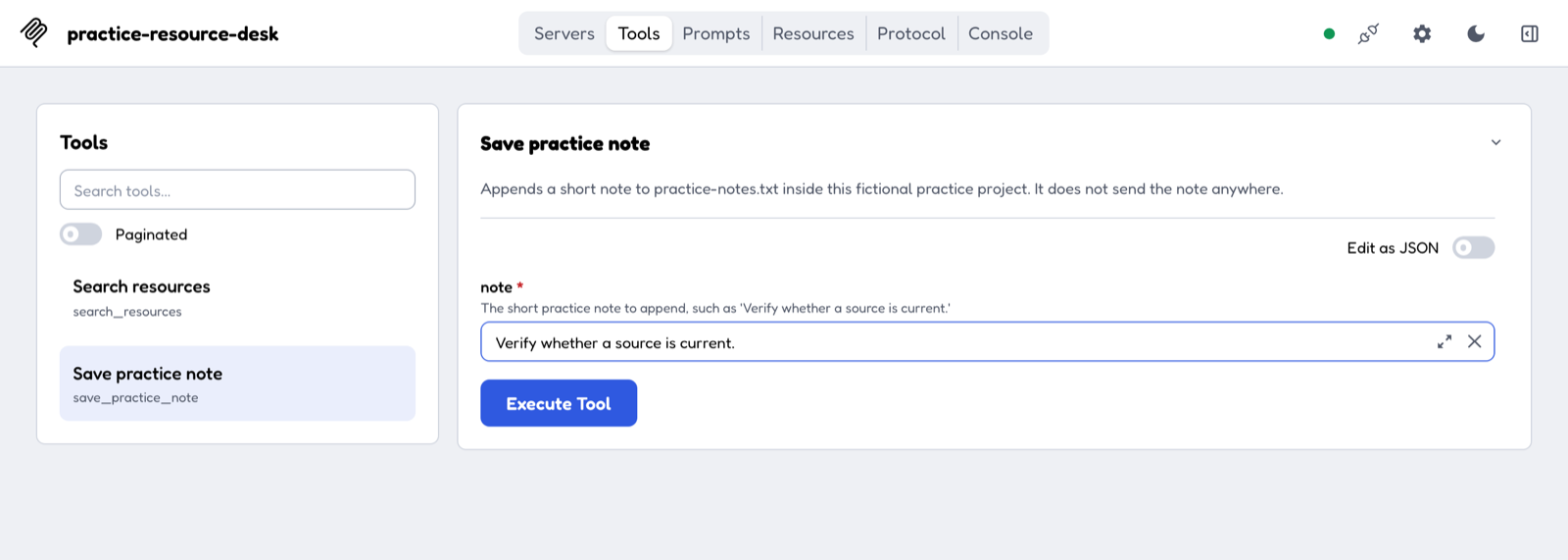
Read the panel and answer these
- Its title: Save practice note, and its technical name,
save_practice_note - Its description, which names the exact file it will change
- Its one required input, labeled note
- Any badges or annotations — there are none
- Whether anything is sent outside the project — the description says it is not
This tool will append text to practice-notes.txt inside the fictional project. It will not contact Stanford, the internet, or another application.
Step 2 — Check the starting state
Open your downloaded mcp-practice folder in your normal file browser — Finder on a Mac, File Explorer on Windows.
You should see the six files that came in the download, and no file named practice-notes.txt. That file does not ship with the project. It does not exist yet.
Leave that window open. You are going to come back to it.
Before you run it
- What will change? A local practice-notes file will be created or updated.
- Where? Inside this fictional practice project.
- What leaves the computer? Nothing.
- Can this affect a Stanford system? No.
- Can the tool choose another file? No.
Now you know the consequence before you authorize the action yourself.
Step 3 — Make one bounded change
In the field labeled note, type:
Note to save
Verify whether a source is current.
Click Execute Tool — the same control you used in Module 2. The form is replaced by the Results panel:
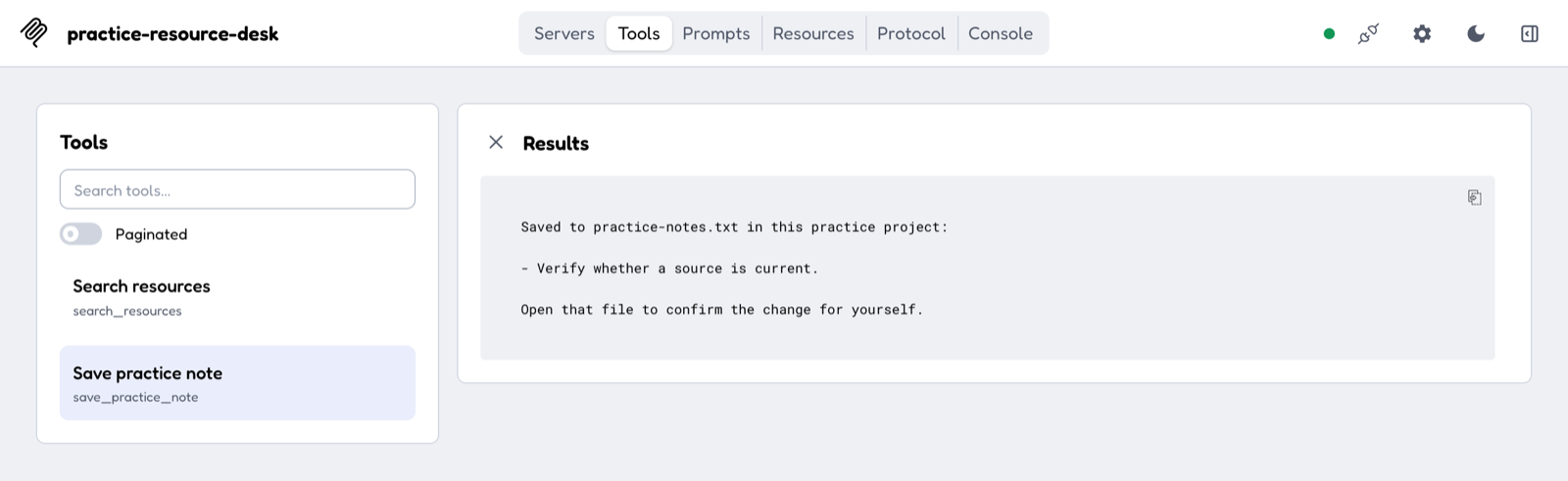
To run it again with a different note, click the × beside Results, as before.
Step 4 — Do not stop at “success”
The tool reported success. That is not evidence that anything happened.
Go back to the file browser window you left open and look at the mcp-practice folder again. A new file has appeared:
practice-notes.txt
Open it by double-clicking — it opens in whatever plain text viewer your computer normally uses. Inside is one line:
practice-notes.txt
- Verify whether a source is current.
The tool said it changed something. You checked the thing it said it changed.
That habit is the entire point of this module. A success message tells you what the server claims. The file tells you what actually happened.
What happened?
- You supplied a note.
- Inspector invoked
save_practice_note. - The Practice Resource Desk wrote to a fixed local file.
- The server returned a result saying the note was saved.
- You independently checked the file.
That file change is a side effect: something that changed beyond the response you got back.
No AI model selected or invoked the tool. You did, deliberately, having read what it would do.
Same protocol, different consequences
Search resources
search_resources
- reads fictional information
- returns matches
- does not intentionally change stored state
- Inspector shows the READ-ONLY badge
Save practice note
save_practice_note
- accepts note text
- changes local stored state
- creates or updates
practice-notes.txt - does not contact an external system
Both are MCP tools. “Tool” tells you what kind of capability it is — not how consequential that capability is.
Consequence matters more than the category
A write can be tiny and reversible, like this practice note. A read can still expose sensitive information.
What matters is understanding what information is involved, what will change, where the change happens, and what the consequences could be.
Want to reset?
The practice project’s starting state contains no practice-notes.txt. Deleting that generated file restores the starting state for this exercise, and you can run the tool again as often as you like.
Delete only this fictional runtime-generated file. Leave the six files that came in the download alone — those are the project itself.
What to notice
Both capabilities were called tools, so what separated them was what happened when each one ran.
search_resourcesreturned information;save_practice_notechanged local stored state.
Inspect the consequence before the action, then verify the consequence afterward.
Checkpoint
You are ready for Module 7 if you can:
- distinguish a read-only operation from a write;
- identify the expected consequence before running a tool;
- explain what a side effect is;
- recognize that tool annotations describe intended behavior rather than replacing judgment;
- run the bounded local write tool; and
- verify the actual file change afterward.