

AI Learning Hub › Learn AI › Self-Paced Courses › MCP Without the Mystery › Understand What a Tool Accepts
Module 5 · Beginner
Understand What a Tool Accepts
Why Inspector knows what input a tool expects: read a schema as a description of structure, and watch validation reject input that does not match.
By the end
- Explain why Inspector knows what input a tool expects
- Recognize a schema as a description of expected structure
- Identify a field in a tool’s input
- See validation reject input that does not match the tool’s expectations
- Distinguish an invalid request from a tool that ran and returned no matches
Inspector already knew what to ask you
In Module 2, when you selected search_resources, Inspector showed a field labeled query.
You did not create that form. Inspector did not guess. The MCP server described what input the tool accepts, and Inspector used that description to build an interface for you.
That description is a schema.
Three words to learn
Schema
A description of the structure and kind of information a tool expects.
Field
One named place in that structure where a value can be supplied.
Validation
Checking whether supplied input matches what the tool expects before or while it is processed.
The tool describes its input
For search_resources:
- Schema
- Describes the input expected by the tool.
- Field
query- Expected value
- Text such as
citationorresearch - Required?
- Yes.
You have already seen validation
In Module 2, Inspector showed a red asterisk beside query. It also disabled Execute Tool while the field was empty.
Those interface choices were clues that the input had requirements.
Some validation can happen in the interface before a request is sent. Other invalid input may be rejected when the request is processed. Different applications make different choices about how much they check up front, so an interface that lets something through is not a promise that it will be accepted.
Step 1 — Start with something valid
Connect to practice-resource-desk, open Tools, and select Search resources. Type research into the query field.
Execute Tool becomes clickable as soon as the field has something in it. Click it. The tool returns two fictional matches:
What the server returns
2 of 5 practice resources matched "research":

Research Planning Workshop
  Format: Workshop
  For: Any student
  An invented ninety-minute workshop on turning a broad question into a research plan.

Source Evaluation Checklist
  Format: One-page checklist
  For: Anyone
  An imaginary checklist for judging whether a source is current, relevant, and appropriate to cite.

All of these are fictional.
The tool and the connection are working normally. Now we will deliberately make one mistake.
Close the result with the × beside Results. The form returns, and research is still in the field.
Step 2 — Look underneath the form
Above the query field there is a switch labeled Edit as JSON. Turn it on.
Inspector normally gives you a form. Edit as JSON shows the same input in a more technical structured form — a small editor containing {}.
You do not need to learn JSON for this tutorial. We are opening it once so we can deliberately supply input the ordinary form would prevent.
Step 3 — Give the tool something it does not accept
The query field expects text. In the editor, type a number instead:
Type this into the editor
{"query": 42}
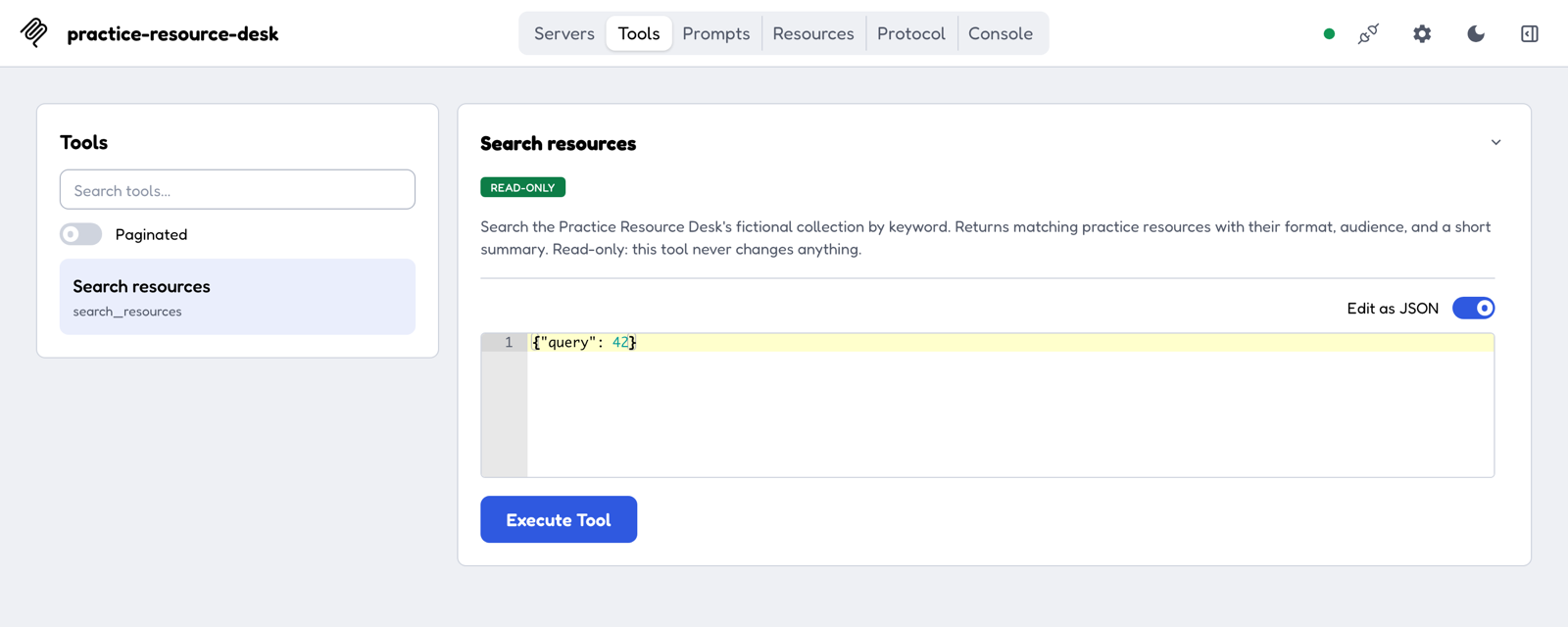
Notice that Inspector lets you do this. The button stays enabled. Click Execute Tool and read what comes back.
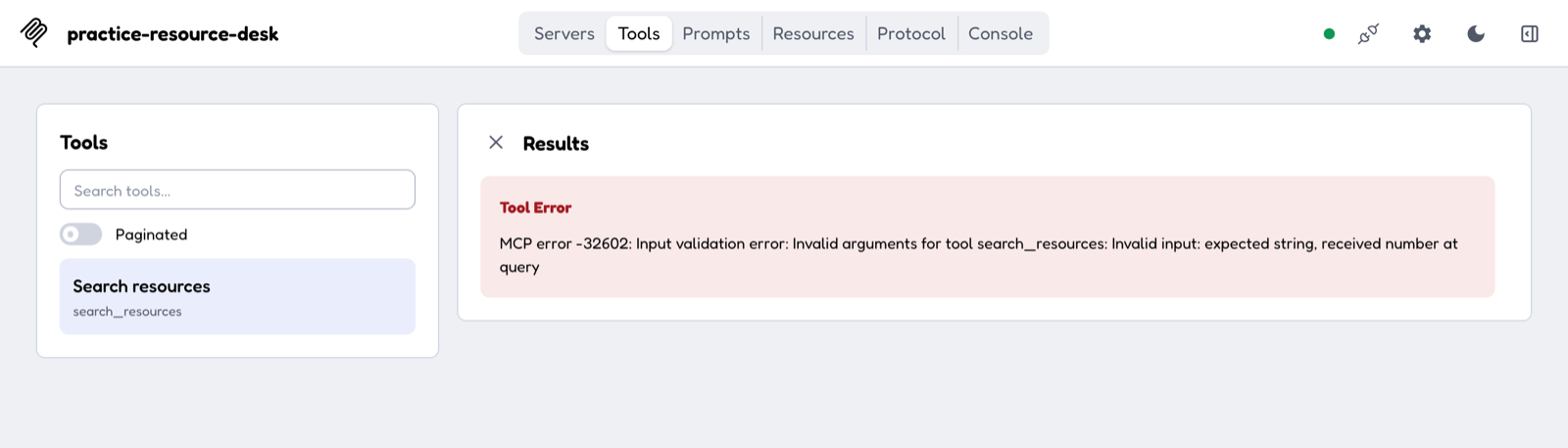
What the server returns
Tool Error
MCP error -32602: Input validation error: Invalid arguments for tool
search_resources: Invalid input: expected string, received number at query
The useful part of that message is at the end: expected string, received number at query. It names the field and says what was wrong with the value. The number and code at the front are technical identifiers you can ignore for now.
Turn the Edit as JSON switch back off to return to the ordinary form.
The tool did not “find nothing”
This is the distinction worth carrying forward. Compare the two outcomes you have now seen:
- Valid request, no matching resource
- With
queryset tospaceshipin Module 2, the tool ran successfully and reported: No practice resources matched “spaceship”… - Invalid request
- With
queryset to42, the request did not satisfy the expected input structure. Validation rejected it, and the search never happened.
“Nothing matched” and “the input was invalid” are different outcomes. The first is an answer. The second is a request that never became a question.
You can see the difference on screen, too: a no-match result appears as ordinary text under Results, while the invalid request appears in a red box headed Tool Error.
Why describe input this way?
A structured description helps interfaces present useful controls, helps applications know what information a tool expects, gets invalid input caught earlier, and lets people inspect a capability before using it.
Here is the whole path you just walked:
- Server describes accepted input
- Inspector builds a form
- You supply values
- Validation checks them
- Valid input can reach the tool
Later, when an AI application chooses a tool, this same description helps the application understand how to call it.
A valid request is not automatically a good or safe request. Validation tells you whether the input has the expected structure. It does not tell you whether the tool should be used, whether the data is appropriate to send, whether the action has acceptable consequences, or whether the returned information is accurate.
What to notice
The form you saw in Module 2 came from information the server provides about the tool.
That description gives both humans and software a way to understand what input the tool expects.
Validation checks structure. It does not replace judgment.
Checkpoint
You are ready for Module 6 if you can:
- explain a schema in ordinary language;
- identify
queryas a field; - explain why Inspector could build the tool form;
- recognize a validation failure;
- distinguish invalid input from a valid search with no matches; and
- explain why valid structure does not guarantee a good decision.